




 UltraEdit
 Dreamweaver
 Docker
 Parallels
 Portfolio
 Access
 Antigravity
 Visual Studio
-
Latest Version
Eclipse SDK 4.41 LATEST
-
Review by
-
Operating System
Mac OS X 10.5 or later
-
User Rating
Click to vote -
Author / Product
-
Filename
eclipse-SDK-4.41-macosx-cocoa-x86_64.dmg
- Enterprise Development
- Embedded and Device Development
- Rich Client Platform
- Rich Internet Applications
- Application Frameworks
- Application Lifecycle Management (ALM)
- Service Oriented Architecture (SOA)
-
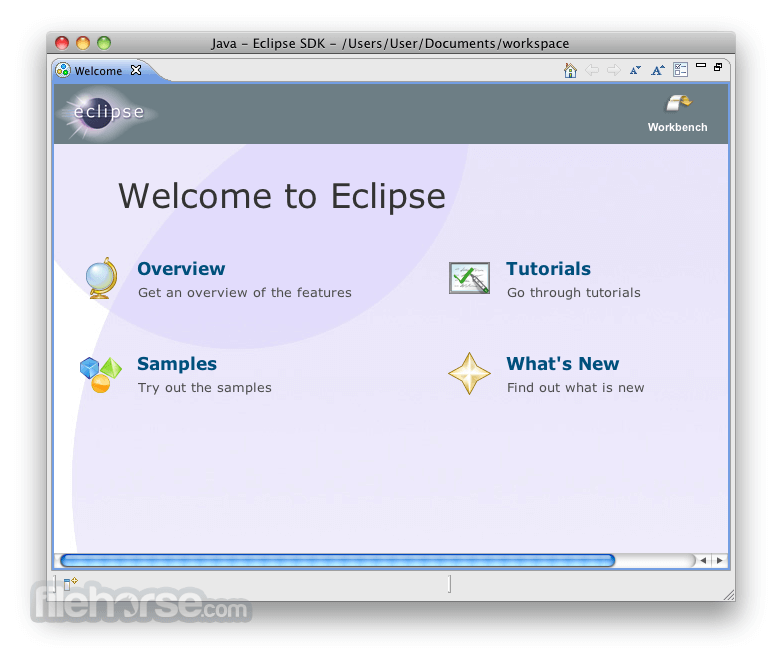
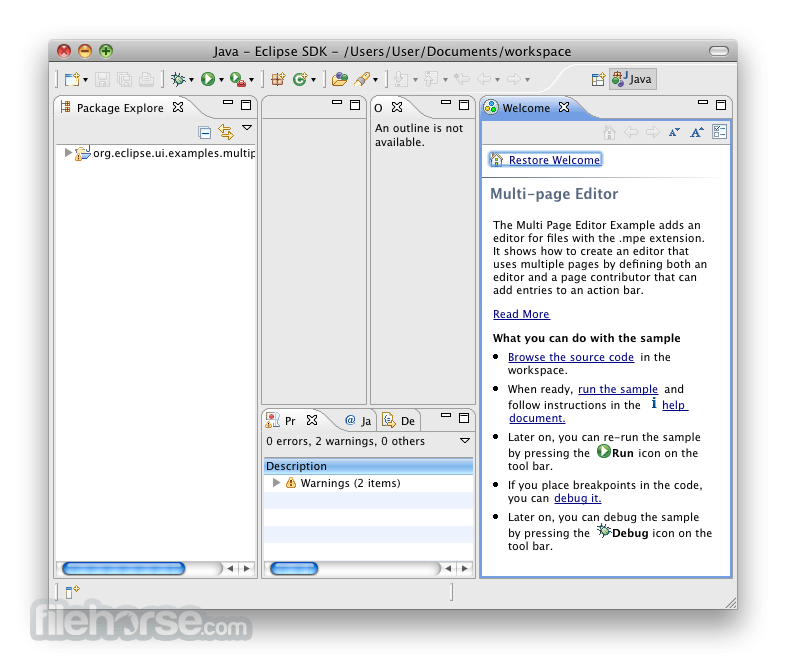
Eclipse SDK 4.41 Screenshots
The images below have been resized. Click on them to view the screenshots in full size.
-
-

-

-

What's new in this version:
New features in the Platform and Equinox:
Views, Dialogs and Toolbar:
Zoom In and Out in the Console View:
- The Console view now supports zooming the font of the console currently shown
- Use Ctrl++ / Ctrl+- (Cmd++ / Cmd+- on macOS) while the Console view is focused to increase or decrease the font size. The corresponding Zoom In Console Font and Zoom Out Console Font commands can also be bound to other keys in Preferences > General > Keys.
- The zoom level is tracked per console type, so, for example, zooming a Process Console does not affect the Java Stack Trace Console or other console types, and it is applied to consoles of the same type that are opened later. The chosen zoom level is remembered across restarts, and changing the console font in the preferences resets the zoom to that new font size.
Text Filter for Problems, Tasks, Bookmarks and Markers Views:
- The Problems, Tasks, Bookmarks, and Markers views now provide a search box that lets you quickly narrow down the shown markers by typing a pattern. The search box matches against the values shown in all visible columns, e.g., the description, resource, path, and location, so markers can be found without having to know in advance which column they will match.
- The visibility of the search box can be toggled on and off using the Show Text Filter entry in the view menu, and its state is remembered per view instance. Whether the search box is shown by default for views that have not been customized yet can be configured via the new Initially show text filter in marker views preference in Preferences > General.
Reorder Terminal Tabs by Drag and Drop:
- Dragging a tab inside the Terminal view now moves it to the drop position, matching the drag-to-reorder behavior you already know from editor and view tabs. The running terminal stays attached while it is moved.
Text Editors:
Customizable Key Bindings for the Find/Replace Overlay:
- You can now customize the keyboard shortcuts of the find/replace overlay, which is shown on top of the editor when pressing Ctrl+F. All its operations, such as searching for the next match or toggling the Regular Expression option, are listed in Preferences > General > Keys when filtering for Find and Replace, so that you can rebind them just like the shortcuts of any other operation. The default key bindings are unchanged.
- To achieve this, the operations of the overlay are now realized as ordinary Eclipse commands, which are provided to the key binding framework while the overlay is focused, instead of the overlay processing key strokes on its own.
Content Assist for Regular Expressions in the Find/Replace Overlay Available in All Editors:
- Whenever the Regular Expression option of the find/replace overlay is enabled, you can press Ctrl+Space in its search and replace input fields to get proposals for regular expression constructs. This content assist is now available in all editors that support the overlay. So far, it only worked in editors that do not provide content assist themselves, so that, for example, no proposals were shown in Java editors.
Unified Diff in the Compare Editor:
- A comparison can now be shown as a unified diff in a single editor pane, similar to git diff or the diff view of a pull request, instead of the classic side-by-side compare editor. Enable it with EXPERIMENTAL: Use Unified Diff instead of 2-way compare when possible on the Preferences > General > Compare/Patch page.
- Once enabled, the compare editor offers a Show Unified Diff toolbar action for every comparison that can be displayed this way, and the unified diff offers Open in 2-way Compare Editor to go back. Switching reuses the comparison that was already prepared and closes the editor you came from, so you end up with one editor instead of two. A file that exists on one side only, or that is gone from the workspace, is shown as a unified diff as well.
- Opening no longer blocks the UI thread, a large comparison is shown before its differences have been computed, and you can cancel a computation that takes too long.
- The unified diff is shown in an editor on the file in your workspace, so a comparison of two revisions with each other still opens in the classic compare editor. Unchanged regions cannot be collapsed yet. The whole file is shown with the differences overlaid. Both are expected for a future release.
Preferences:
Disable Reopening Terminals After Restart:
- The preference Terminal > Reopen terminals after restart has been added to allow disabling the automatic restoration of terminals. If the checkbox is unchecked, a terminal view kept open when restarting the Eclipse IDE will no longer reopen all active terminals in that view.
Themes and Styling:
Unsaved Changes Indicator on Tabs Is Now the Default:
- The bullet-style dirty indicator introduced in 4.40 is now enabled by default, so a view or editor with unsaved changes shows a filled bullet on its close button instead of a leading asterisk. You can turn it off again with Indicate unsaved changes by overlaying the close button in Preferences > General > Appearance.
General Updates:
Faster Native File System Access on Linux x86_64:
- The code responsible for retrieving file system data has been improved for x86_64 Linux systems. The Refresh (F5) operation in Project Explorer or Package Explorer on NFS-mounted file systems is now faster by an order of magnitude (seconds instead of minutes). If this change causes regressions, it can be disabled by setting the system property -Declipse.filesystem.useFastLinuxNatives=false.
Active Launch Indicators in Run and Debug History:
- The Run History and Debug History menus now provide a visual indication of active launches. When an entry has one or more non-terminated launches associated with it, a gear icon (⚙) is displayed next to the entry. This makes it easier to identify configurations that are already running and helps avoid unintentionally launching the same configuration again.
Quick Group Launch from Selected Configurations:
- The Launch Configurations dialog now provides a Quick Group Launch action for selected launch configurations. Previously, creating a launch group required creating a new Launch Group configuration and manually adding each launch configuration as a group member. With this enhancement, Eclipse can create a launch group directly from the selected configurations, automatically adding them as group members. This provides a faster way to launch multiple configurations together while still allowing the generated Launch Group to be customized later if needed.
Single Sign-On Enabled by Default for Edge/WebView2 Browser:
- The SWT Edge/WebView2 browser integration now enables Single Sign-On (SSO) with Azure Active Directory (AAD) resources by default, using the logged-in Windows account. This also enables SSO with websites using Microsoft accounts associated with the Windows login, aligning with the previous behavior of the Internet Explorer engine. To opt out, set the system property org.eclipse.swt.browser.EdgeAllowSingleSignOnUsingOSPrimaryAccount to false.
Last Execution Time in Launch History:
- The launch history menus now display the relative termination time of previously launched configurations in their tooltips.
- Instead of showing only the configuration name, the tooltip now provides additional context such as Last executed a moment ago, Last executed 5 mins ago, or Last executed 1 hour ago. This makes it easier to identify recently used configurations and quickly relaunch the desired one.
- The additional context is particularly useful when favorite configurations are pinned to the top of the history menus, where the displayed order may not reflect recent usage.
Faster and Size-Consistent Drawing of Scaled Images on Windows:
- Drawing images at continuously changing sizes using one of the GC.drawImage() operations is significantly faster on Windows again.
- Since the 2025-12 release, every GC.drawImage() call that scaled an image to a size not used before had to prepare the image for that new size, even if the very same image content was already available from the previous call. This slowed down applications that repeatedly draw an image at changing sizes, such as an image viewer with a zoom slider or a view whose content scales with the window size. Zooming or resizing could stall visibly, with individual drawing operations taking up to ten times longer than before.
- Images are now prepared only when content of a different resolution is actually needed, and the prepared content is retained for subsequent drawing operations. Zooming and resizing images is thus as smooth as before, while images are still rendered as sharply as possible on HiDPI monitors.
- In addition, images are now drawn at consistent sizes on monitors with a zoom other than 100%, independent of which GC.drawImage() overload is used. Previously, the overload that supports cropping could render an image a few pixels off compared to the other overloads, which was particularly visible for images whose width and height differ substantially.
Sort Launch Configurations by Most Recent Launch:
- The Launch Configurations dialog now provides a toolbar option to toggle between the default alphabetical sorting and sorting by most recently launched configurations within each type group.
- The number of recent configurations considered is controlled by the existing Size of recently launched applications list preference.
Debugger:
Resume Other Threads During Debugging:
- The debugger now provides a Resume Other Threads action for multithreaded debugging.
- When a suspended thread is selected, this action resumes all other suspended threads in the same debug target while keeping the selected thread suspended. This allows users to continue execution of background threads while inspecting the current thread.
- The action is available from the Debug view context menu and can also be invoked using the Shift+F8 keyboard shortcut.
New features for Java developers:
Java Editor:
Open Types and Methods in a New Editor from Hyperlinks:
- The Java editor now provides an Open in New Editor option in the hyperlink popup for types and methods.
- When navigating to a declaration, implementation, or method within the same editor, users can now choose to open the target in a separate editor tab directly from the hyperlink menu.
- This makes it easier to inspect implementations, compare code, and work with multiple locations in parallel without losing your current position.
- Enhanced For-loop to ForEach Quick Assist:
- With this new quick assist, on an enhanced for-loop such as the following:
- for (String adj : list) {
- System.out.println(adj);
- if the list item is an Iterable object, a new option is available: Convert Enhanced 'for' loop to 'forEach'. This converts the loop above, with a forEach statement:
- list.forEach(adj -> {
- System.out.println(adj);
- });
Java Views and Dialogs:
[JEP 512] Create Compact Source Files from the New Java Wizard:
- The Java wizard now provides a compact source file template for creating compact source files introduced in Java 25 (JEP 512).
- The wizard generates an implicit class source file with a top-level void main() method, making it easy to get started with compact programs without manually creating the required structure.
- Compact source files are always created in the default package and are available for Java 25 (or later) projects.
- Note: If the Compact Source File option is not available in the Java wizard, try resetting the current perspective (Window > Perspective > Reset Perspective) to refresh the wizard contributions.
New APIs in the Platform and Equinox:
Platform Changes:
Shared Disabled Image Descriptor on ImageDescriptor:
- ImageDescriptor now provides asDisabledDescriptor(), which returns a lazily created, shared ImageDescriptor for the disabled version of the image. This allows you to use a single descriptor with a ResourceManager to share both the original and disabled images, instead of managing two independent descriptors.
New Internal CSS Parser Replaces Batik and SAC:
- The e4 CSS engine now parses stylesheets with an internal recursive-descent parser instead of the Batik and SAC parser stack. Selector matching, specificity and the resulting style model are unchanged.
If you extend the CSS engine, note the following changes:
- The InputSource-based overloads are replaced by CSSEngine.parseStyleSheet(InputStream) and CSSEngine.parseStyleSheet(InputStream, String uri), the latter carrying the base location for relative @import resolution.
- ICSSPropertyHandler2 has been folded into ICSSPropertyHandler.
- The SAC-based value and selector model has been replaced by internal types.
- The margin and padding handlers of org.eclipse.e4.ui.css.swt now throw IllegalArgumentException instead of the SAC CSSException.
Long-Standing Third-Party Bundles Removed from the Update Site:
The Eclipse SDK no longer uses and therefore no longer ships the following bundles:
- com.ibm.icu, dropped after the last internal usage in data binding was replaced by java.text
- org.apache.batik.css, org.apache.batik.util, org.apache.batik.i18n and org.apache.batik.constants
- org.eclipse.orbit.xml-apis-ext, which provided the SAC API org.w3c.css.sac
- If your code or your product depends on any of them, replace the usage, or add the bundles to your target platform as Maven artifacts or from the Orbit repository.
Language Toolkit (LTK):
Copy Refactoring Support:
- LTK already supported refactoring operations for moving, renaming, and deleting resources, but part of the infrastructure for copying was missing. Copy participants contributed via the org.eclipse.ltk.core.refactoring.copyParticipants extension point are now invoked when resources are copied.
- These copy participants can perform refactorings, such as adjusting package names for specific languages. For example, the Eclipse 4diac IDE includes a participant that updates package names to match the new folder structure when resources are copied.
SWT Changes:
Test Your Application on Linux with GTK4:
- The GTK4 port of SWT received a large number of fixes in this release. Drag and drop is now implemented, menus and toolbars behave correctly, Shell sizing has been reworked, images are no longer blurry on HiDPI displays, and the dark theme preference is honored. Complete applications, including the Eclipse IDE itself, are now usable on GTK4.
GTK3 remains the default. To run a plain SWT application against GTK4, set the SWT_GTK4 environment variable to 1:
- SWT_GTK4=1 java -cp ... MyApplication
If you start your application through the Equinox launcher, pass the --launcher.GTK_version argument on the command line or add it to your eclipse.ini:
- --launcher.GTK_version 4
- No rebuild is required, because the Linux SWT fragments ship both the GTK3 and the GTK4 native bindings.
- GTK4 support is a preview, so please run your own applications with it and report what you find in the SWT issue tracker. These reports drive the remaining work needed to make GTK4 the default.
Reorder CTabFolder Tabs Without Recreating Them:
- CTabFolder gained moveItem(int from, int to), which moves a tab to a new position without disposing and recreating the item, so the control shown by the tab stays attached. The chevron and the visible-tab state are updated along with the move.
New features for Plug-in developers:
Editors:
Empty Package Removed from Manifest:
- When a class is moved and the source package becomes empty, or when all classes in a package are deleted, the package is now automatically removed from the Export-Package header in MANIFEST.MF if it was previously exported. This prevents the manifest from listing packages that no longer contain any resources and ensures that empty packages are cleaned up automatically.
- p2.inf Editor Support in Bundle and Feature Editors:
- The PDE Plug-in Manifest Editor and Feature Manifest Editor now include a dedicated p2.inf tab.
- Previously, p2.inf files had to be opened and edited as plain text with no tooling support. Now, when you open a plug-in or feature project in PDE's multi-page editor, the p2.inf file automatically appears as an additional tab — right alongside MANIFEST.MF or feature.xml.
The editor provides:
- Syntax highlighting — keys and values are visually distinguished, making the file easier to read at a glance
- Context-aware content assist — press Ctrl+Space anywhere in the file to get smart suggestions for valid p2.inf keys such as requires, provides, instructions, and properties, as well as their nested sub-keys (e.g., requires.0.namespace and requires.0.name). Suggestions follow the exact key hierarchy that p2 expects.
- This works for both plug-in projects (where p2.inf resides in META-INF/) and feature projects (where it resides in the project root). For the full p2.inf syntax reference, see the Customizing Metadata documentation.
- Dependency Cycles Through Import-Package Are Detected:
- The Look for cycles in the dependency graph action of the MANIFEST.MF editor now also finds cycles that run through Import-Package dependencies. Previously only cycles formed by Require-Bundle were reported.
Launching:
- Fix Validation Problems Directly in the Validation Dialog:
The dialog shown by Validate Plug-ins on the Plug-ins tab of a launch configuration now offers two fixes:
- Select Required adds the missing required plug-ins and features.
- Remove Unresolved unchecks every plug-in that did not resolve.
- Validation is repeated after each pass, so plug-ins that only become unresolved once a dependency was removed are handled in the same click, and the dialog shows that there are no problems left once everything is resolved. The launch configuration tab is marked dirty so you can apply the change.
Performance:
Plug-in Classpaths Are Updated in Parallel:
- Reloading the target platform in a workspace with many plug-ins is noticeably faster, because the Plug-in Dependencies classpath of the affected projects is now computed in parallel.
- You can switch the parallel computation off with the new Update plug-in classpaths in parallel preference on the Preferences > Plug-in Development page.
Views and Dialogs:
Enable OSGi Console Option in Launch Configurations:
- The launch configurations dialog now provides a new Enable OSGi Console option. When selected, the required -console argument is added automatically to the program arguments. This removes the need to manually edit the program arguments and helps preserve the setting when launch configurations are recreated.
Enhancements to Show Launch Bundles Dialog:
The Show Launch Bundles dialog in the Eclipse launch configuration has been improved with three enhancements:
- Bundles are now sorted alphabetically, making it easier to navigate the list
- A search box has been added to quickly filter bundles by name
- Bundles that share the same symbolic name are now highlighted, making duplicates easier to identify
Find Support Added in Plug-ins View:
- The Plug-ins view now includes a search box that allows you to filter plug-ins by name. You can type directly into the search box or use Ctrl+F (or Cmd+F on macOS) to focus it. This makes it easier to locate specific plug-ins in large workspaces.
Layout Spy Joins the PDE Spies:
- The SWT layout spy now appears in the PDE spies window and menu next to the other spies, and it shows the widgets of the selected control in a tree. It keeps its global Ctrl+Shift+Alt+F9 key binding (Cmd+Shift+Alt+F9 on macOS), so you can still open it on top of a blocking dialog.
- The new Find Class button hides the spy, lets you click any control, and then reports the owning element of the e4 application model and its implementing class, including the contribution URI and the bundle. Parts of the 3.x compatibility layer are unwrapped, so you see the real view or editor class. For a control that does not belong to the application model, such as one in a plain JFace dialog, the shell and the class of its data object are reported instead.
Preference Spy Tracks the User Scope:
- The preference spy watched the bundle default, configuration, default and instance scopes, so changes to the user scope, which stores per-user preferences under <user.home>/.eclipse, went unnoticed. The user scope is now watched as well and is included in Show All Preferences.
- Contributor acknowledgements
 OperaOpera 135.0 Build 5973.133
 PhotoshopAdobe Photoshop CC 2026 27.10
 OKXOKX - Buy Bitcoin or Ethereum
 WPS OfficeWPS Office
 Adobe AcrobatAdobe Acrobat Pro 2026.002.21901
 CleamioCleamio 3.4.0
 MalwarebytesMalwarebytes 5.27.1
 TradingViewTradingView - Track All Markets
 CleanMyMacCleanMyMac X 5.2.10
 AdGuard VPNAdGuard VPN for Mac 2.10.0
Comments and User Reviews